Preceda Console has been designed to manage and work with jobs and spool files on the server. The viewing of spool files is available only if you have Preceda Presenter installed and you have been granted access by your System Administrator.
To access Preceda Console, use the Tools>>Console navigator.
The Console Window contains the navigational and user interface components that are used to mange your job and spool files. The Console Menu contains the actions that can be performed for each activity, such as changing or holding jobs.
From the Actions menu, the following sub-menu are available. This menu changes depending on the active window (e.g. spool files, jobs messages).
If viewing Jobs, the following Actions Menu is displayed:
| Refresh | Updates the information currently displayed on the console window. |
| View Job Log | Views the job log produced by the selected job. |
| Change | If the selected job has a status of JOBQ, the job can be moved to a different queue on the server. |
| End Job | If the selected job has a status of JOBQ or ACTIVE, this ends the job. |
| Hold | If the selected job has a status of JOBQ or ACTIVE, this holds the job. |
| Release | If the selected job is currently HELD, this releases the job and allows it to continue processing. |
| View Job Spool Files | This displays all spool files produced by the selected job. |
| Reply to Message | If the selected job has a status of MSGQW, this displays the message and allows a reply to the message. |
If viewing Messages, the following Actions Menu is displayed:
| Refresh | Updates the information currently displayed on the console window. |
| View Message | Views the selected message text. |
| Remove |
Removes the selected message text |
If viewing Spool Files, the following Actions Menu is displayed:-
| Refresh | Updates the information currently displayed on the console window. |
| Download Spool File | Downloads the selected spool file in the format chosen as set in the Options - Spool File tab. |
| Send to Printer | This option uses Preceda Presenter to store and convert the spool file to a format the printer can understand and is used for printing on preprinted forms such as Security Pay Advices and Payment Summaries. The first time this option is selected, Preceda guides you through the installation process before you can continue. |
| Change | Change the Output Queue on which the spool file resides. |
| Delete | Deletes the selected spool file. |
| Hold | Holds the selected spool file with a status of READY or WTR. |
| Release | Print a selected spool file which has a status of HOLD. |
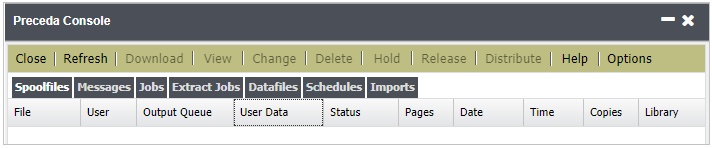
When using the Spoolfiles option from the Console Toolbar the View Spoolfiles and Download Spoolfiles have a special purpose.
View Spoolfiles
To view a spoolfile, select and double click the file from the list. The Spoolfile is displayed in HTML format with a Toolbar at the top.
The arrows enable quick movement through pages or you can go directly to a page in the report by entering the page number. <F3> and <Shift><F3> can be use to move through the pages.
Download Spoolfiles
This option allows the downloading of spoolfiles to your desktop. The format of the file can be chosen using the Options pull down in the console.
When a spoolfile is selected the Red Traffic Light (Hold) icon will hold a spoolfile.
If held the Green Traffic Light (Release) becomes activated and can be used to release a held spoolfile.
The Distribute icon can be used to distribute spoolfiles. The process works in the same way as the distribution of Packages in Report Manager with the obvious exception that Report Manager's Run by User functionality does not apply.
The status bar located at the bottom of the window, is used to display feedback from the system during and after processing. It displays:
This is the area within the Console where your selected window displays the outcome of your choice, such as the Spool files. The information displayed depends on the settings in the View | Options menu choice.
Each column can be sorted by clicking on the column heading . For example if sorting spool files by user, click on the user data title. All spool files are sorted in user ascending alphabetical order (A to Z). To reverse the sort order, click on the user data title again, and they are resorted in descending alphabetical order (Z to A).
To select a spool file, job or message highlight the line, this enables any icons or actions that can be used. To select multiple entries at the same time hold down the Shift key and use the Up and Down arrow keys, or hold down the Shift key and select with the mouse
Preceda Console control various default settings and security, which is system wide and applies to all users of the database, the options that can be made in Console options are:-
Default Settings
This allows for settings required as the default on opening of Preceda Console to be defined.
| Name | Possible Values |
|---|---|
| Default Spoolfile User |
*CURUSR ( the current user) |
| a username | |
| blank | |
| Default Output Queue | blank |
| an output queue name | |
| *APPUSER (any application user as defined in PAYUSR) | |
| Default Output Queue Library | blank |
| an output queue name | |
| *APPUSER (any application user as defined in PAYUSR) |
This allows you to control the security for users to define what they are allowed to access for jobs, messages, and spoolfiles.
| Name | Possible Values |
|---|---|
| Spoolfile Security |
|
| Job Security |
|
| Messages Security |
|
| View Security |
|
Please complete the form below to give us feedback. If you need any assistance with this functionality, please contact Preceda Support.
|
|
Version 15.3.01 Preceda Knowledge Base
For feedback and comments, please contact your Systems Administrator or Account Manager. |
| |